В ефірі
◆Челендж тижня: Into the Galaxy →★Шаблон дня: Spectrum Ribbons →✦Нове: PulSound тепер встановлюється як застосунок — а ще вхід за відбитком пальця й анімовані заголовки →●Порада: Тягніть краї смуги-хвилі, щоб вибрати точний відрізок для експорту. →

Video editor

Everything the PulSound video editor can do

Pro-level editing right in your browser, on a phone or a computer: nothing to install, no watermark. Your files never leave your device.

Open the video editor

Як це виглядає

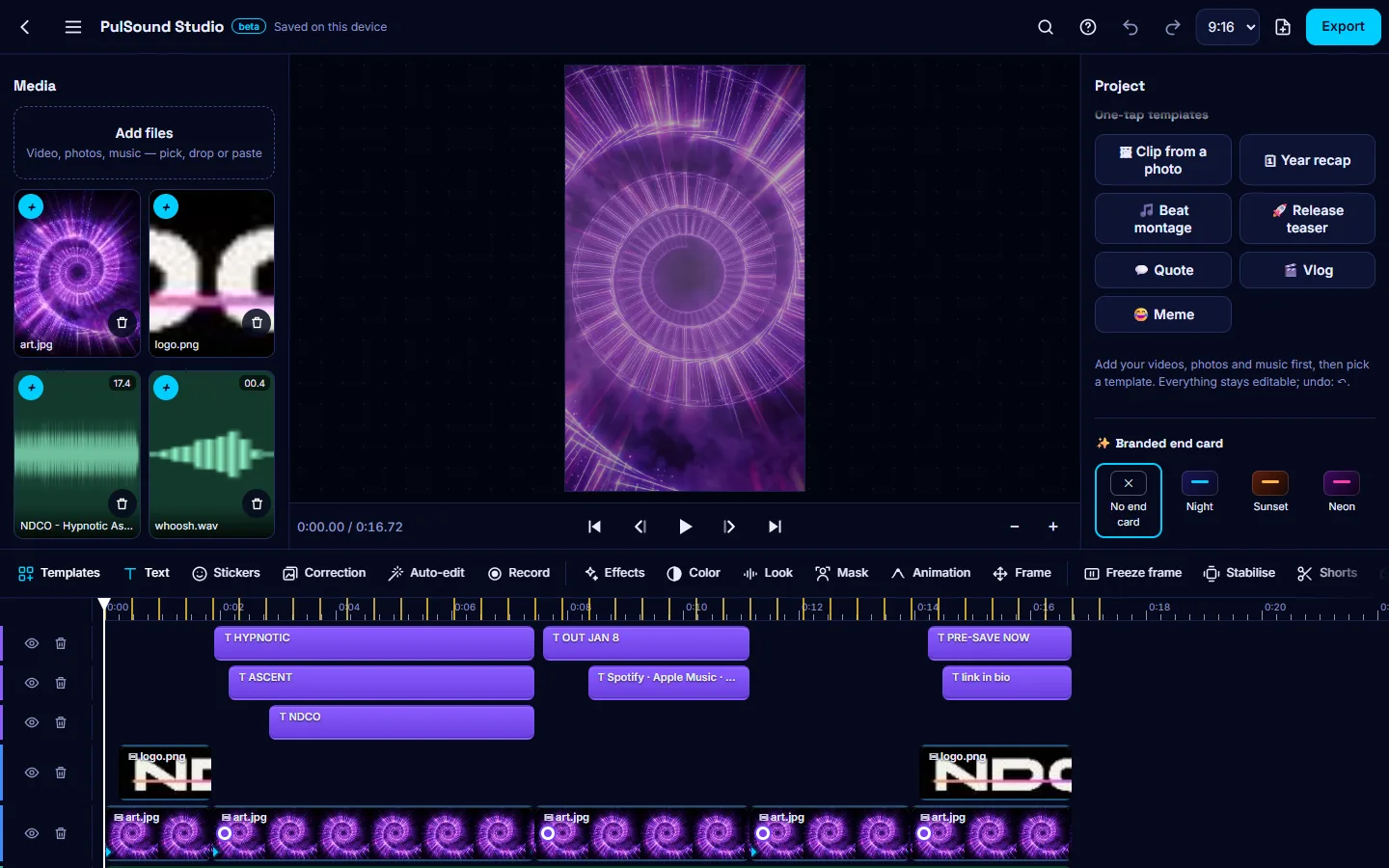
Відеоредактор: доріжки, текст, ефекти й музика на одній шкалі часу
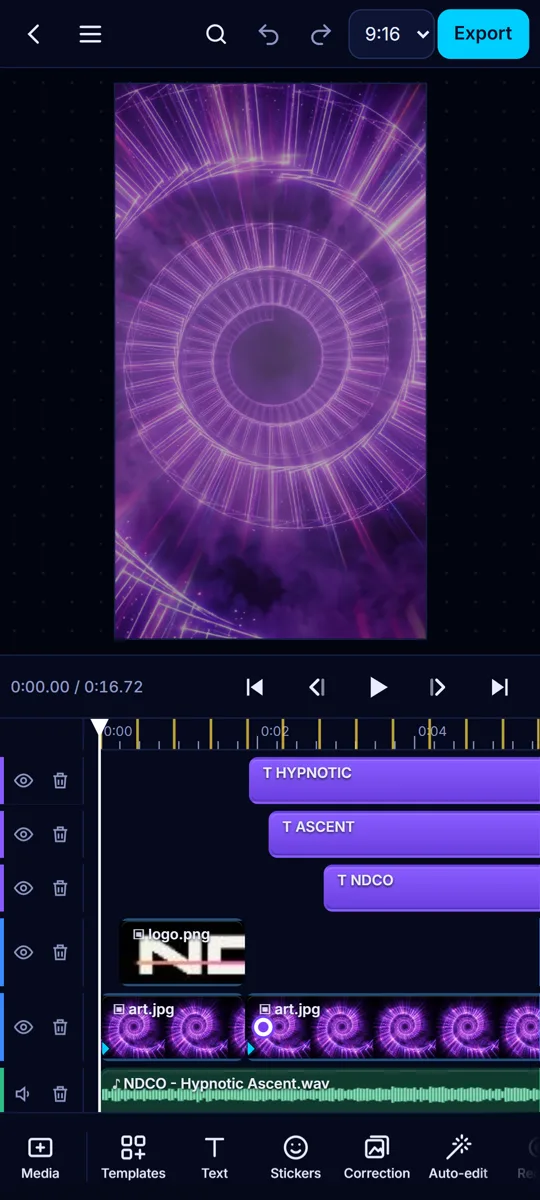
Той самий редактор на телефоні
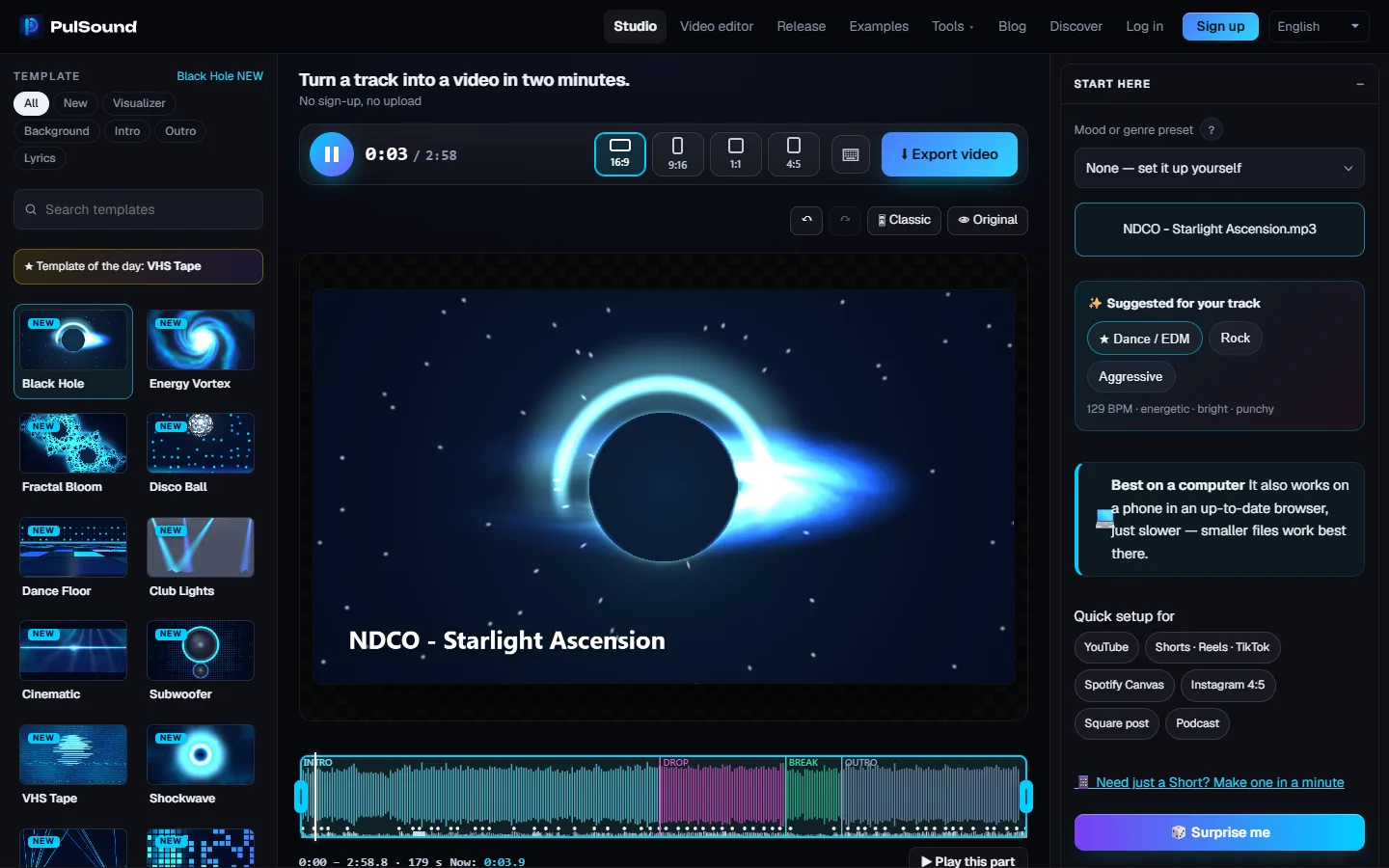
Студія музичних відео: трек перетворюється на візуалізацію, частини пісні знаходяться самі
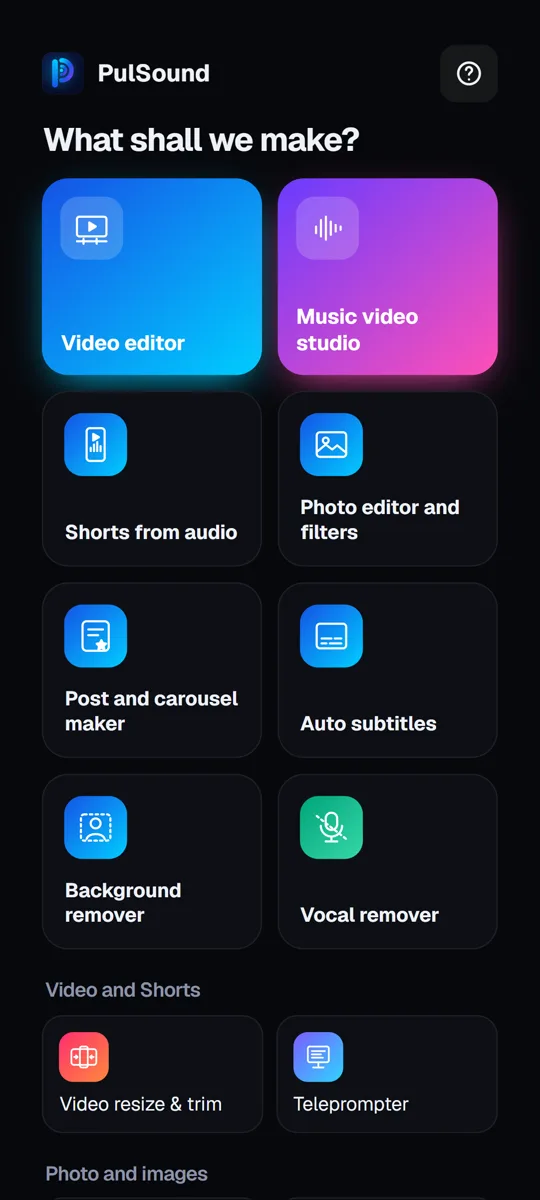
Стартовий екран застосунку: будь-який інструмент в один дотик
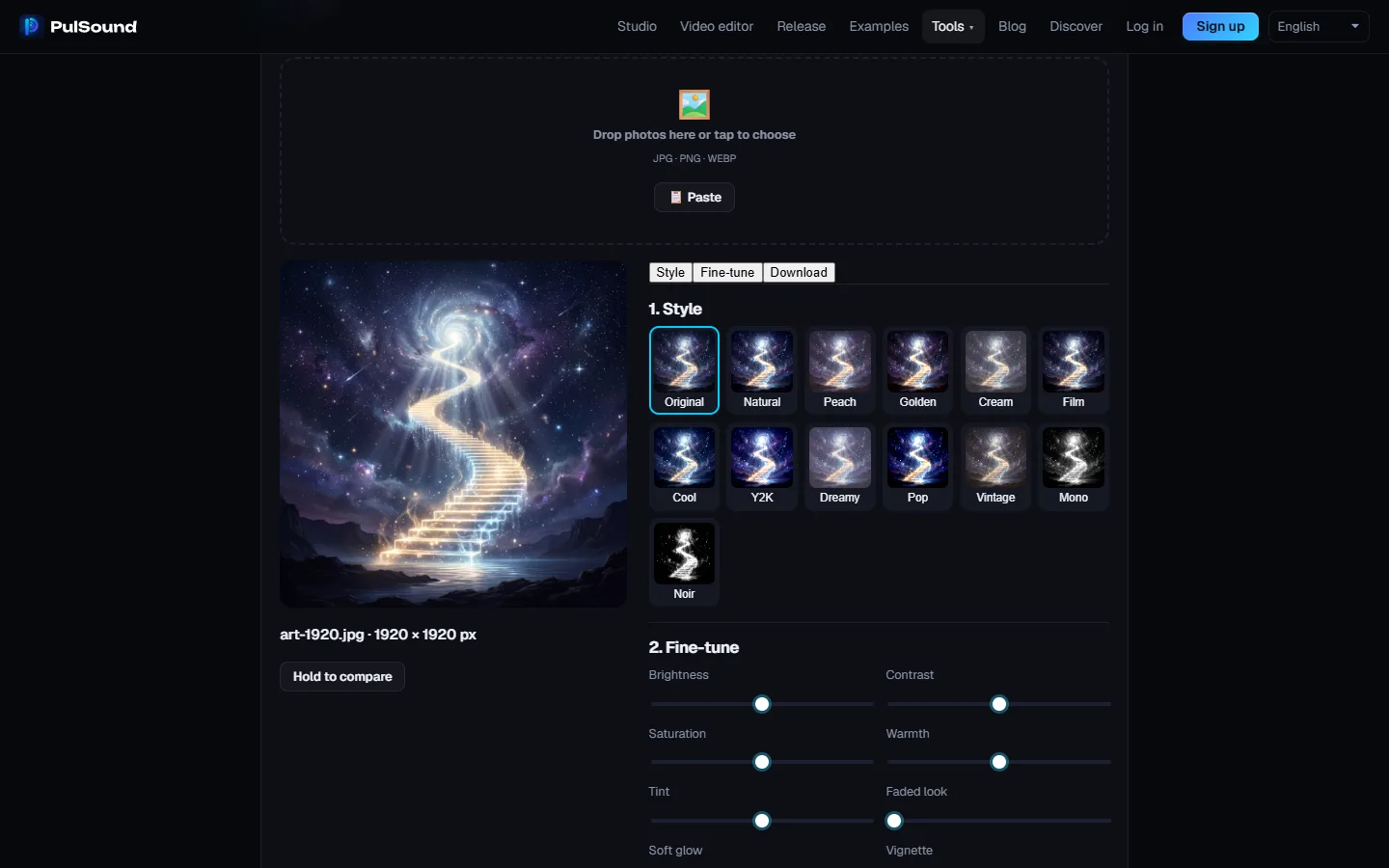
Фоторедактор: готові стилі й тонке налаштування, фото залишається на пристрої

Відеоуроки

1Editing basics

The basics: add files, cut, order, change speed. Select a clip on the timeline and its tools appear in the bar; with nothing selected, the bar shows what you can add.

Tracks and clips

Media · timeline

Video, photos, music, text and the visualizer sit on separate tracks, as in desktop editors.

How: Tap “Media” and pick files — several at once, by drag and drop or by pasting. Move clips along the tracks and drag their edges to trim.

Ideas: A video from concert photos set to your track, a vlog from several takes, a slideshow.

Split, duplicate, layers

Toolbar → Split, Duplicate, Up, Down

Splits a clip at the playhead, makes a copy, moves a layer up or down.

How: Put the playhead in place, select the clip and tap “Split”, “Duplicate”, “Up” or “Down”.

Ideas: Remove pauses from a talking video, repeat a great moment, put a caption over the video.

Speed and speed curves

Toolbar → Speed

Speeds up or slows down a clip; a speed curve slows the video on the key moment and speeds it up again.

How: Clip → “Speed”: ready-made values or a speed curve — “Velocity on the beat”, “Bullet”, “Slow middle” or your own curve.

Ideas: Slow down a jump or a hit on the downbeat, turn a long video into a timelapse.

Freeze frame and reverse

Toolbar → Freeze frame

Holds a frame for 1–5 seconds (optionally with a slow push-in) or plays the clip backwards.

How: Clip → “Effects” → “Freeze frame” or “Reverse”.

Ideas: A freeze frame with the hero’s name, a “rewind” at the start of the video.

Format, turn and mirror

Top bar → 9:16 · Frame tab

The project is 9:16, 16:9, 1:1 or 4:5. A clip can be turned by 90°, mirrored or flipped upside down.

How: The format is at the top of the editor. Turning: clip → “Frame” → “Turn”.

Ideas: A video shot sideways becomes vertical in one tap.

Undo and autosave

Top bar → ↶ ↷

Undo and redo, the project saves itself in the browser, and there are keyboard shortcuts on a PC.

How: The ↶ ↷ buttons or Ctrl+Z / Ctrl+Y. Space plays and pauses.

Ideas: Experiment freely: every step can be undone.

Stickers and living motion

Toolbar → Stickers

Emoji, arrows, hearts and music stickers that can keep moving on their own: bounce, heartbeat, wave, float, flame.

How: Tap Stickers, pick one, then drag it into place. In the Animation tab choose a living motion.

Ideas: A pointing arrow over the button you talk about, a pulsing heart on the drop.

Project files (.pulsound)

Menu → Save project file

Saves the whole project with its videos, photos and music in one file, so you can continue on another device.

How: Menu → Save project file. To continue, open the editor and drop the .pulsound file in.

Ideas: Start on the computer, finish on the phone; keep a template project for every release.

Branded end card

Project panel → End card

A 4-second end card after the video with a short line about how it was made, in the language you choose.

How: With nothing selected, open the Project panel, pick a colour for the end card and its language.

Ideas: Turn it off for client work, keep it on for your own channel.

2Text and captions

Text and styles

Toolbar → Text · Style tab

Fonts, a background plate, outline, shadow, glow, gradient, hollow letters, letter and line spacing.

How: “Text” → type the words → the “Style” and “Frame” tabs.

Ideas: The track name, a call to follow, a quote from the song.

Templates (80+)

Toolbar → Templates

Ready-made styled captions and intros in one tap.

How: The “Templates” button → pick one → replace the text.

Ideas: A quick start for Reels and release teasers.

Text animations

Animation tab

In and out: fade, from below, from above, pop, zoom, typewriter, letter by letter, bouncy letters, wipe. Plus all-the-time effects: wave, neon flicker, jitter, pulse.

How: Select the text → “Animation”. Tapping an option shows it right away.

Ideas: A neon sign for a synthwave track, a typewriter for a story.

Captions and word highlight

Toolbar → Subtitles

An .srt or .vtt file becomes separate phrases; the current word lights up as in karaoke.

How: Drop the caption file into the editor, then text → “Highlight the current word”. You can make the captions themselves in the Auto Subtitles tool.

Ideas: A lyric video, a talking head with bold captions.

Text behind a person

Toolbar → Text behind

AI cuts out the person and the caption goes behind them — as in magazines and trending Reels.

How: Select a video or photo → the “Text behind” button.

Ideas: The track name behind the artist, a huge word behind a dancer.

Video in letters and fly-through

Text → Style tab

The picture shows only inside the letters; the camera can fly through the letters and reveal the full video at the end.

How: Text → “Mask” → “Video inside the letters”, then “Fly through the letters”.

Ideas: A striking start for a music video, a title intro.

3Frame and motion

Keyframes

Frame tab → Keyframes

Animates position, size, rotation, opacity, mask and colour. Each segment has its own easing: smooth, linear, ease in, ease out, back, bounce, hold.

How: Add a point, move the playhead and change a value — a second point appears.

Ideas: A smooth push-in on a face, a caption that slides in and stops with a bounce.

Photo motion

Frame tab

A slow zoom in or out, a pan or a tilt across a photo — as in documentaries.

How: Photo → “Frame” → “Photo motion”; it can be applied to all photos at once.

Ideas: A slideshow from tour photos that feels like video.

Perspective and 3D turn

Frame tab

The layer lands on a wall, a screen or the floor by its 4 corners, or tilts in 3D.

How: Clip → “Frame” → “Perspective (4 corners)” and drag the corners, or use the 3D tilt.

Ideas: Your video on a phone screen or a billboard.

Motion blur

Animation tab

Fast movement smears like a real camera.

How: Clip → “Frame” → “Motion blur”.

Ideas: Fast slide-ins of captions and photos look more expensive.

Crop and blurred background

Frame tab → Crop

Crops the picture to the shape you need and fills the empty space with a blurred copy instead of black bars.

How: Clip → “Frame” → “Crop” / “Blurred background instead of black bars”.

Ideas: A horizontal video in a vertical one without black bars.

Object tracking

Frame tab → Tracking

The editor follows a chosen object or person through the whole clip, and a caption or sticker moves with it.

How: Video → “Frame” → “Mark an object to track” and tap the object. Then text → “Attach to an object in the video”.

Ideas: A name above a player, an arrow following a car, a label on a dancer.

Auto-frame 9:16

Frame tab

A horizontal video turns vertical and the frame smoothly follows the person.

How: Video → “Frame” → “Make it vertical 9:16”.

Ideas: Shorts cut from a long performance or interview.

4Effects and AI

Transitions between clips, effects that hit on the beat, cutouts and masks.

Transitions

Animation tab → Transition

13 transitions: dissolve, push, wipe, circle, fly in, fade, flash, zoom, whip, blur, spin, glitch and more.

How: Tap “+” where two clips meet, or clip → “Animation” → transition. It can be applied to every cut.

Ideas: A whip on the verse change, a flash on the drop.

Effects on the beat

Toolbar → Effects

Shake, pulse zoom, flash, blur, glitch and echo fire exactly on the track’s beats.

How: Clip → “Effects” → find the beats and move the sliders.

Ideas: A high-energy video for phonk or techno without placing anything by hand.

Object cutout (AI)

Mask tab

One tap selects a person or an object and cuts it out in one frame or across the whole clip; you can also keep only the background.

How: Clip → “Mask” → “Select an object by tapping” → “Cut out in the whole clip”.

Ideas: Clone yourself, a new background behind the artist, text between a person and the background.

Chroma key

Mask tab

Removes a green or any other plain background.

How: Clip → “Mask” → take the background colour with the eyedropper, then “Strength” and “Edge softness”.

Ideas: Shoot on green and put any scene behind you.

Shape masks

Mask tab

Circle, rounded rectangle, heart, star and other shapes with a soft edge; the mask can be animated.

How: Clip → “Mask” → shape, size, softness, keyframes.

Ideas: A face in a corner window, picture-in-picture.

Blend modes

Mask tab → Blend

Screen, multiply, overlay, soft light and more — how a layer mixes with what is under it.

How: Clip → “Mask” → “Blend”.

Ideas: Light leaks and dust over the video: Screen drops the black background.

3D photo

Toolbar → 3D photo

A flat photo gains depth: the person comes forward while the background drifts away.

How: Photo → “Effects” → “Make a 3D photo”.

Ideas: A living cover for a track, an opening shot from a single photo.

Visualizer in the video

Project panel → Visualizer

A music animation that moves to your track, as its own clip.

How: The “Visualizer” button, then “Look”.

Ideas: A video for a track without filming: cover + visualizer + text.

5Film looks and light

Looks that cover the whole frame while a clip plays. A little goes a long way.

Film grain and VHS

Effects tab → Film & VHS

Fine film grain or a worn VHS tape with colour bleed and wobble.

How: Select a clip → Effects → Film & VHS and raise Film grain or VHS tape.

Ideas: Grain 10–20 on every clip makes phone footage look shot on film.

Light leaks and glow

Effects tab → Film & VHS

Warm light leaks drifting over the frame and a soft glow around bright parts.

How: Raise Light leaks or Glow & halation; the light colour is set in the Player block.

Ideas: Glow on a night city, leaks on a sunset or a wedding.

Smoke, haze, dust and bokeh

Effects tab → Film & VHS

Slow haze and floating specks of light that move with the music.

How: Raise Smoke & haze or Dust & bokeh.

Ideas: Haze for a calm intro, dust for a dreamy photo clip.

Cinema bars

Effects tab → Film & VHS

Black bars top and bottom, like a wide film.

How: Raise Cinema bars.

Ideas: Turn a vertical vlog into a mini film for one dramatic scene.

Twinkling lights

Effects tab → Twinkling lights

Bright spots in a photo — lamps, garlands, stars — twinkle and glow on the beat.

How: Select a photo → Effects → Twinkling lights.

Ideas: Night photos, Christmas trees, starry skies.

Player with the song wave

Effects tab → Player

A music player drawn over the video: song wave, mirrored wave, track card, horizon line, ring, vinyl, level meter, countdown and more. It moves with the music.

How: Raise “Player with the song wave”, then pick a style, position, size and colours.

Ideas: A ring around the sun, a horizon line for a 16:9 visualizer, vinyl for a lo-fi track.

Snow

Effects tab → Film & VHS

Falling snow in three depths: big soft flakes near the lens, tiny ones far away, all swaying in the wind.

How: Select a clip → Effects → Film & VHS → raise Snow.

Ideas: A New Year reveal: plain room, flash on the drop, then snow + Glow.

6Colour

Filters

Color tab

Vivid, warm, cool, film, B&W, vintage, drama, soft.

How: Clip → “Color” → filter.

Ideas: One look for the whole video.

Adjustments and “apply to all”

Color tab

Brightness, contrast, saturation, temperature and vignette; one tap copies them to every clip.

How: Clip → “Color” → sliders → “Apply to all videos and photos”.

Ideas: Match videos shot on different phones.

Shadows, midtones, highlights

Color tab

Separate control of the dark, middle and bright parts plus shadow and highlight tints, like curves in pro software.

How: Clip → “Color” → “Shadows, mids, highlights”.

Ideas: A film look with blue shadows and warm highlights; lift a dark video without blowing out the sky.

LUT (.cube)

Color tab → LUT

Loads a ready-made colour grade from a .cube file and keeps it inside the project.

How: Color tab → Load a LUT, pick a .cube file and set its strength.

Ideas: Use the same LUT on every video of a series so they look like one set.

Adjustment layer

Toolbar → Correction

A layer whose colour and effects change everything under it, for as long as you stretch it.

How: Tap Correction, stretch the layer over the part you need, then set colour or effects on it.

Ideas: Black-and-white for a flashback, a glitch only over the drop.

7Sound

Volume, fade in, fade out

Sound tab

Volume for each clip, smooth starts and ends, and a video’s sound can go to its own track. Sound is blended across transitions automatically.

How: Clip → “Sound”.

Ideas: Music that fades out smoothly at the end.

Duck music under voice

Sound tab

The music gets quieter by itself whenever someone speaks — as in podcasts and vlogs.

How: Music clip → “Sound” → “Lower this music when someone speaks”.

Ideas: A vlog or review with background music and no manual volume rides.

Clean the voice

Sound tab

Removes noise, hum and rumble and evens out the voice level.

How: Clip → “Sound” → “Clean the voice”.

Ideas: A phone recording made outside or in an echoey room.

Even out clip loudness

Project panel → Loudness

Measures each clip’s loudness the way streaming services do and evens them out.

How: “Sound” → “Even out the loudness of all clips”.

Ideas: A compilation of different videos without volume jumps.

Beats

Project panel → Beats

Finds the beats of a track, cuts a clip on the beats or puts every video and photo on the beat.

How: “Sound” → “Find the beats” → “Cut this clip on the beats” or “Put all videos and photos on the beat”.

Ideas: A punchy video for a song in one minute.

8Smart tools

Auto-edit

Toolbar → Auto-edit

Finds the beats of your music and the liveliest moments of every video, then cuts them together on the beat.

How: Add videos and a song, tap Auto-edit. Don’t like it? Press Back.

Ideas: A travel or party video in one tap, then fine-tune.

Beat montage and one-tap templates

Toolbar → Templates

Ready-made edits: beat montage, clip from a photo, year recap, release teaser, quote, vlog, meme.

How: Add your files first, then pick a template. Everything stays editable.

Ideas: Clip from a photo turns one cover and a song into a music video.

Stabilise

Toolbar → Stabilise

Removes hand-held camera shake and keeps the smooth movement.

How: Select a video → Stabilise → Remove the shake. Tap the preview to compare before and after.

Ideas: Walking shots, concert videos filmed from the crowd.

Shorts from a long video

Toolbar → Shorts

Listens to the sound and watches the motion to find the most striking fragments of the length you choose.

How: Select a long video → Shorts → Find the best moments, then open each fragment and export it.

Ideas: A live stream or a podcast into ten Shorts.

Voice and music apart

Toolbar → Vocals/inst.

Splits a song or a video’s sound into the voice and the music.

How: Select a clip with sound → Vocals/inst. → Remove the voice or Keep only the voice.

Ideas: Karaoke versions, a clean voice over new music.

Remove pauses

Sound tab → Remove pauses

Cuts out silences longer than half a second and closes the gaps.

How: Select a talking video → Sound → Cut out pauses.

Ideas: Talking-to-camera videos that keep viewers watching.

Translate subtitles

Text → Style tab → Translate

Translates captions into another language on your device, keeping their style and timing.

How: Select a caption → Translate, pick the language. The original track is hidden, not deleted.

Ideas: One video, captions in English and Spanish.

Record your voice

Toolbar → Record

Records a voice-over straight onto a track, at the playhead.

How: Put the playhead where the voice starts, tap Record, then Stop.

Ideas: A quick explanation over a tutorial, a reaction over a clip.

9Combinations and tips

Music video from one cover

Templates → Clip from a photo, then Effects → 3D photo and Player → Ring. The cover moves in depth, the ring dances to the song.

Effects that really hit the beat

Sound → Find the beats first. Then Flash and Pulse zoom fire on the real hits: strong on the drums, soft in quiet parts.

Text behind a person + glow

Text behind, then in the Style tab turn on Glow and in Animation choose Glow-in. Looks like a magazine cover that comes alive.

One look for a whole series

Set colour and film looks on one clip, then use “Apply to all”. Save the project file and start the next video from it.

Horizontal video for Shorts

Frame tab → Make it vertical 9:16: the frame follows the person. Then Shorts finds the best moments.

Clean talking video

Remove pauses → Clean the voice → Subtitles with word highlight. Three taps and it plays like an edited podcast.

10Saving

MP4 up to 4K and 60 fps

Top bar → Export

Saves in 720p, 1080p, 2K or 4K at 30 or 60 frames per second, with no watermark.

How: The “Export” button → quality and frames per second → “Save MP4”.

Ideas: 4K for YouTube, 1080p at 60 fps for smooth Reels.

Private and free

Everywhere

Everything is computed on your device: the video is never uploaded and no sign-up is needed.

How: Just open the editor in Chrome, Edge or Safari.

Ideas: Edit unreleased material with no risk of leaks.

The heavy AI features (object cutout, tracking, auto-frame) also work on phones, but they are faster on a computer. The model downloads the first time; after that it starts instantly.